
Welcome to Technical Support Help
General Information
Contact Technical Support
If you have any questions or need technical help, please contact us:
- Email: techsupport@excelsior.edu
- Toll-free: +1-877-842-8324
- Phone: +1-518-464-8502
Hardware & System Requirements
Note: Students in the Associate Degree in Nursing program (ADN) must meet the system requirements for both Wolters Kluwer & Lippincott and ATI Nursing Education course software.
Canvas System Requirements
Visit the Canvas System Requirements page for the minimum operating system, device, and browser requirements, and to ensure your device is up to date.
Supported Devices:
To access all of your course content, you will need to use a Windows or Apple device. Examples are provided in the table below.
| Required Primary Devices | Can Be Used as Secondary Device |
|---|---|
| Windows Laptop | Mobile Phones |
| Windows Desktop | Chromebooks |
| MacBook Air, MacBook Pro | Tablets, i.e. iPad, Microsoft Surface |
| iMac, Mac mini |
Antivirus & Antispyware
Excelsior nor the colleges and universities working with Excelsior to offer online courses are responsible for preventing malware infections or providing technical support for any computer protection software you may choose to install.
Excelsior recommends that you obtain computer protection software (software that protects your computer from malware viruses, spyware, etc.) since these programs are not developed by Excelsior, if you have any technical support questions or problems regarding these programs, you will need to contact the respective program vendor.
Excelsior Email Account Troubleshooting
Excelsior University students can install Microsoft 365 applications (Word, Excel, PowerPoint, Outlook, Teams, and more) using their Excelsior University email account.
Step 1: Sign In
- Open your web browser.
- Go to https://www.office.com.
- Select Download and choose Micrsoft 365.
- Enter your Excelsior University email address.
- Enter your password and complete Multi-Factor Authentication (MFA) if prompted.
Step 2: Download Microsoft 365
- After signing in, locate the Install and more button in the upper-right corner of the page.
- Click Install apps located in the upper right corner of the screen.
- Select Install Microsoft 365 apps.
- On the next page, click Install Office to begin downloading the installer.
Step 3: Install Microsoft 365
- Open the downloaded installation file.
- If prompted, select Yes to allow the installer to make changes to your device.
- The installation will begin automatically.
- Wait for the installation to complete. This may take several minutes depending on your internet connection.
Step 4: Sign In to Activate Microsoft 365
- Open any Microsoft 365 application, such as Word or Excel.
- When prompted, sign in using your Excelsior University email address.
- Complete Multi-Factor Authentication (MFA) if requested.
- Microsoft 365 will automatically activate your license.
Verify Your Installation
Open any Microsoft 365 application and confirm you can create and save documents. Your account name should appear in the upper-right corner of the application, indicating you are signed in with your Excelsior University account.
Troubleshooting
- Verify you are signing in with your Excelsior University email address.
- Ensure you have a stable internet connection during the installation.
- Restart your computer if the installation does not complete successfully.
- If you continue to experience issues, contact the Excelsior University IT Support team for assistance.
Microsoft Self-Service Password Reset (SSPR) allows you to reset or change your Excelsior University password without contacting the IT Help Desk.
You can use SSPR if you forget your password or if you need to reset it while signing in to Microsoft Outlook or other Microsoft 365 applications.
Reset Your Password from the Outlook Sign-In Screen
Step 1: Go to Outlook
- Open a web browser.
- Go to https://outlook.office.com.
- Enter your Excelsior University email address.
- Click Next.
Step 2: Select “Forgot my password”
When prompted for your password:
- Click Forgot my password?
- You will be redirected to the Microsoft password reset page.
Step 3: Verify Your Identity
- Enter your Excelsior University email address if requested.
- Complete the CAPTCHA or security verification.
- Click Next.
- Microsoft will ask you to verify your identity using one of your registered MFA methods.
Step 4: Choose “I Forgot my Password” or “I know my password, but still can’t sign in”
Depending on the methods you have configured, you may be able to:
- Approve a notification in the Microsoft Authenticator app.
- Receive a text message.
- Receive a phone call.
- Use another authentication method configured on your account.
Step 4: Create a New Password
After your identity has been verified:
- Enter your new password.
- Enter the new password again to confirm it.
- Password Criteria is the following:
- Minimum of 10 characters in length
- Must contain 3 of the following:
- Capital Letter
- Lowercase letter
- Number
- Symbol
- Password Criteria is the following:
- Select Finish or Submit.
Your password has now been reset.
Multi-Factor Authentication (MFA) adds an additional layer of security to your Excelsior University account. After MFA is enabled, you will be required to verify your identity when signing in to Outlook, Microsoft 365 applications, and other university resources. You will need to use your email address and current password for that email address to log into O365. When you are logging in to this for the first time, it will prompt you to set up MFA if you have not already done so for your account.
You can log into O365 by visiting https://outlook.office.com
- Enter your Excelsior email address and click submit
- Enter your Email password
- Click Next
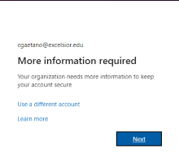
- Click Next and Download Microsoft Authenticator (App) on your cell phone. The Microsoft Authenticator App is the preferred method for MFA. If you choose to use a phone call instead, click on “I want to setup a different method at the very bottom of that prompt and skip to step 6.
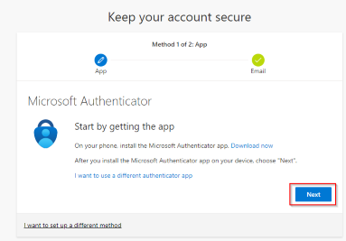
- Open the Microsoft Authenticator app on your cell phone:
- Accept any option(s) required and select the option to “Add a work or school account”
- Once selected, choose the option to “Scan a QR Code”
- Scan the QR code that is presented after selecting “Next” in the Outlook login window shown above
- Follow any prompts and when complete click “Done”
If you choose to not set up the Authenticator as an App on your cell phone, you are required to complete this step:
Alternate Phone call Method:
- Click I want to set up a different method
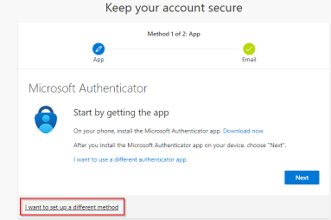
- Choose Phone from the dropdown menu
- Enter your phone number, Click next, and follow the prompts to complete you MFA setup.
Once you’ve signed in to Outlook on the web, you can easily access all of your Microsoft 365 applications without signing in again.
Step 1: Sign in to Outlook
- Open your web browser.
- Go to https://outlook.office.com or https://www.office.com.
- Sign in with your Excelsior University email address and password.
- Complete Multi-Factor Authentication (MFA) if prompted.
Step 2: Open the App Launcher
- In the upper-left corner of Outlook, click the App Launcher (the 9-dot “waffle” icon).
- A menu will appear displaying your Microsoft 365 applications.
Step 3: Select an Application
Click the application you want to open, such as:
- Outlook
- Teams
- OneDrive
- Word
- Excel
- PowerPoint
- OneNote
- Calendar
- People
- Forms
- SharePoint
The selected application will open in a new browser tab or the current tab.
Outlook on the Web allows you to access your Excelsior University email, calendar, contacts, and other Microsoft 365 features from any web browser.
Step 1: Open a Web Browser
Step 2: Go to Outlook
Step 3: Sign In
- Enter your Excelsior University email address.
- Click Next.
- Enter your Excelsior University password.
- Click Sign in.
Step 4: Complete Multi-Factor Authentication (MFA)
If prompted, complete your MFA verification.
Depending on your configured authentication methods, you may need to:
- Approve a notification in the Microsoft Authenticator app.
- Enter a verification code.
- Use another authentication method configured on your account.
Tip: It is recommended that you have more than one MFA authentication method configured. This provides a backup if your primary method, such as your phone, is lost, stolen, damaged, or unavailable.
Step 5: Access Outlook
After signing in, you will be taken to your Outlook inbox.
Adding an additional authentication method to your Microsoft 365 account gives you a backup way to verify your identity if your primary MFA method is unavailable.
For example, if you normally use the Microsoft Authenticator app on your phone, having another method available can help you regain access if your phone is lost, stolen, damaged, or replaced.
Step 1: Open Your Security Information
- Open a web browser.
- Go to https://mysignins.microsoft.com/security-info.
- Sign in using your Excelsior University email address and password.
- Complete MFA using your current authentication method.
Step 2: Add a New Authentication Method
- On the Security info page, select + Add sign-in method.
- Select the authentication method you want to add.
- Click Add.
Step 3: Set Up Your New Method
Follow the instructions provided on the screen.
Step 4: Confirm Your New Method
After completing the setup, return to the Security info page.
Your new authentication method should now appear in the list of available sign-in methods.
Important Tip: Have More Than One Method
It is strongly recommended that you maintain at least two authentication methods whenever possible.
For example:
- Primary: Microsoft Authenticator
- Backup: Phone or another approved authentication method
Having a backup method can prevent you from being locked out of your account if your primary authentication device becomes unavailable.
Before Replacing Your Phone
If you are getting a new phone:
- Set up your new MFA method before getting rid of your old phone.
- Verify that the new method works.
- Remove the old device or authentication method when appropriate.
Never approve an MFA request that you did not initiate.
Frequently Asked Questions
Password Help
To retrieve your password:
- Go to the MyExcelsior login screen.
- Click on “Forgot password”.
- Enter your email address and username.
- You will see this message: “Check your email for your Excelsior University password reset link.”
- Check your email for the password reset link, and click “Verify your account”.
- You will be prompted to enter your email address and two of the requested pieces of information. We recommend entering your email address, date of birth and zip code. Once this information has been filled in, click on the red “Submit” button.
- On the next screen, you will be prompted to type and re-type your password. Once this is filled in, click on the red “Submit” button.
- You will see a confirmation message and that you have been logged out. You can now return to the login screen and log in with your username and new password.
To retrieve your username:
- Go to the MyExcelsior login screen.
- Click on “Forgot Username”.
- Enter your email address and click on the “Submit” button.
- You will receive an email containing your username.
Login Issues
Contact us directly if you are unable to log in with your correct user name and password. See Contact Technical Support.
Please note, the following regions are blocked due to security concerns: Azerbaijan, Bulgaria, China, Cocos (Keeling) Islands, Cuba, Cyprus, Egypt, Georgia, Iran, Kazakhstan, Latvia, Lithuania, Mauritania, Moldova, Nigeria, North Korea, Romania, Russia, Serbia, Singapore, Slovakia, Turkmenistan, Ukraine, Uzbekistan, and Venezuela.
Excelsior University is currently in the process of implementing student accounts. Office 365 Personal, which includes the Microsoft Word program, is available for both Microsoft and Apple computers – for more information, please visit their website. You may also be able to use the free Office Online product here.
Chrome
- Open Chrome.
- At the top right, click More
.
- Click More tools
Clear browsing data.
- At the top, choose a time range. To delete everything, select All time.
- Next to “Cookies and other site data” and “Cached images and files,” check the boxes.
- Click Clear data.
Firefox
- Open Firefox
- Click the menu button and choose Options.
- Select the Privacy & Security panel.
- In the Cookies and Site Data section, click Clear Data…
- Remove the check mark in front of Cookies and Site Data.
- With Cached Web Content check marked, click the Clear button.
- Close the about:preferences page. Any changes you’ve made will automatically be saved.
Availability of Technical Support
| Level 1 | 24/7/365 including University holidays
|
| Level 2 | Monday – Thursday 9:00 am to 9:30 pm ET Friday 9:00 am – 4:30 pm ET Saturday & Sunday 9:00am – 3:00 pm ET Excludes all University holidays
|
| Level 3 | Monday through Friday 9:00 am to 4:30 pm ET, excludes all University holidays
|
Weekly Downtime Schedule
Excelsior University systems will undergo general maintenance every Wednesday from 5 AM – 7 AM EST. During this maintenance period, all systems, including the Excelsior University website and on-line courses, will be unavailable.
Quarterly Downtime Schedule
In order to introduce new technical services, upgrades and routine maintenance, all systems including the Excelsior University website, online courses and phones, will be unavailable during the following dates. Hours of downtime for each will be 8:00 AM – 4:00 PM EST, unless designated otherwise.
- Quarter 1 (July-Sept) Second Saturday in September
- Quarter 3 (Jan-Mar) Third Saturday in March
- Quarter 4 (Apr-Jun) Third Saturday in May
Add us to your address book to ensure our emails get through
Spam (unsolicited or unwanted electronic messages) accounts for more than half of all email sent. Many email providers use spam filters to keep these unwanted messages from reaching your Inbox. As a result, even if you’ve signed up to receive email from Excelsior University, our emails may be blocked, routed to your spam folder, or displayed incorrectly by these filters. Add us to your address book to make sure our emails get through.
Add these addresses:
- no-reply@excelsior.edu
- techsupport@excelsior.edu
Instructions for adding addresses:
